Complete Guide to Test PWA on Desktop
Progressive Web Apps can now be installed on Desktop like native apps. As PWA are fast, secure and sync in background – the PWA on Desktop will be a revolution in WWW and for applications. Users can now install PWA upon Desktop via the following platforms and versions:
- Chome OS(Chrome 67+)
- Windows (Chrome 70+)Linux and Mac is expect to support Desktop PWA’s from version 72. You can early test it by enabling the flags mentioned below.
Advantages of using PWA on Desktop
- The size of the app will be very small when compared to the native apps and will be more fast.
- Releasing an update and prompting users to update the app needs a lot of hardwork nowadays. Sometimes most of the users won’t update their apps, by using PWA the updates will be handled in background and users where not needed to be confused.
- PWA helps to easily fix if any bug or error occurred while rolling the update than native apps.
- No time taking installation needed
- They are reliable as service workers can cache all of the assets they need to run
Right now the Google Chrome is the only browser which is supporting Progressive Web Apps on Windows Desktop. Google Chrome from version 67 supports to install the PWA by visiting the website on Windows.
Flags for enabling PWA on Chrome
As for testing PWA (for previous versions of Chrome 70 or for Mac Users. not needed if your browser is updated to the latest version on Windows and Linux), you need to enable 3 flags upon Chrome to see the PWA functionalities within the browser.
- App Banners: chrome://flags#enable
-app-banners - Experimental App Banners:chrome://flags#
enable-experimental-app- banners - Desktop PWAs: chrome://flags#enable-de
sktop-pwas
How to test PWA on Desktop (Chrome Browser)
- Visit the website that you would like to install PWA into Desktop
- From the Browser Menu (the three dots at the right corner of browser), you can see Install + Website’s name (for eg; if the name of the website is SuperPWA, then it will be Install SuperPWA)
- Once you click on it, you can see a Banner at the top center of browser. Click the Install button within the prompt.
- A new window will be opened automatically that loads the Start Page that you set for PWA. You can also notice an Icon within your Desktop
- Now the website works as a Application from Desktop with features of PWA
(Step by step video to easily understand how to Install PWA on Desktop)
Read more : How to Test PWA on Google Chrome Browser (Mobile Device)
How to Uninstall PWA on Desktop
Chrome PWA on Desktop currently provides 2 options to uninstall the PWA.
-
Directly from the PWA Window
PWA can be easily uninstalled from the PWA screen by tapping three dots (Customize and Control option). As from the options select Uninstall. Then a prompt occurs for confirming the uninstall, select Remove button.
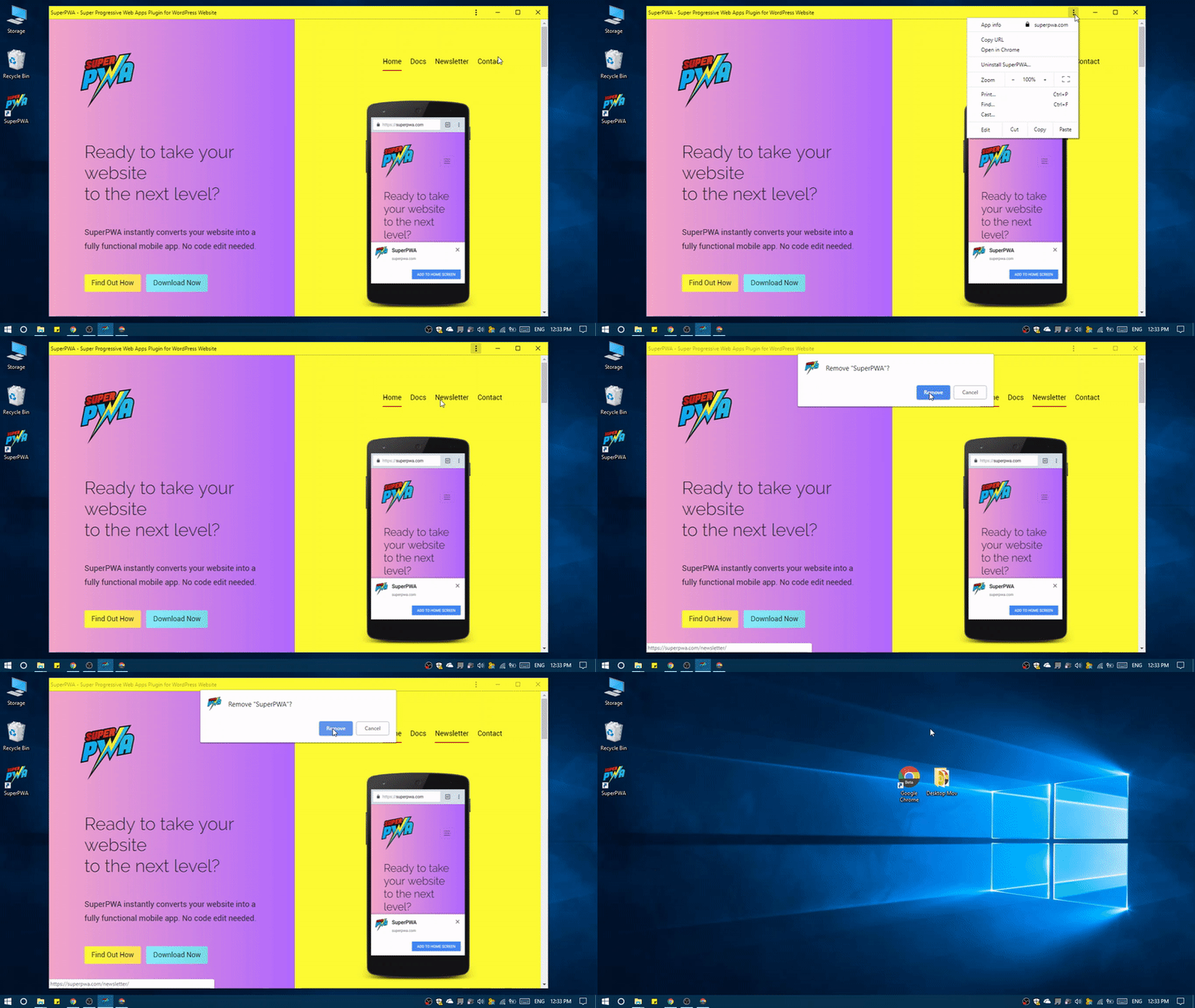 Uninstalling PWA from Desktop (Chrome Browser)
 -
Via Chrome Apps page
Chrome apps page helps to find out what all PWA’s are installed within your desktop via Chrome Browser. For accessing it, type chrome://apps/ over the address bar. Find the app you wish to uninstall, right click the PWA Logo which you would like to uninstall. And then select Remove from Chrome from the options and click Remove from the prompt appears.
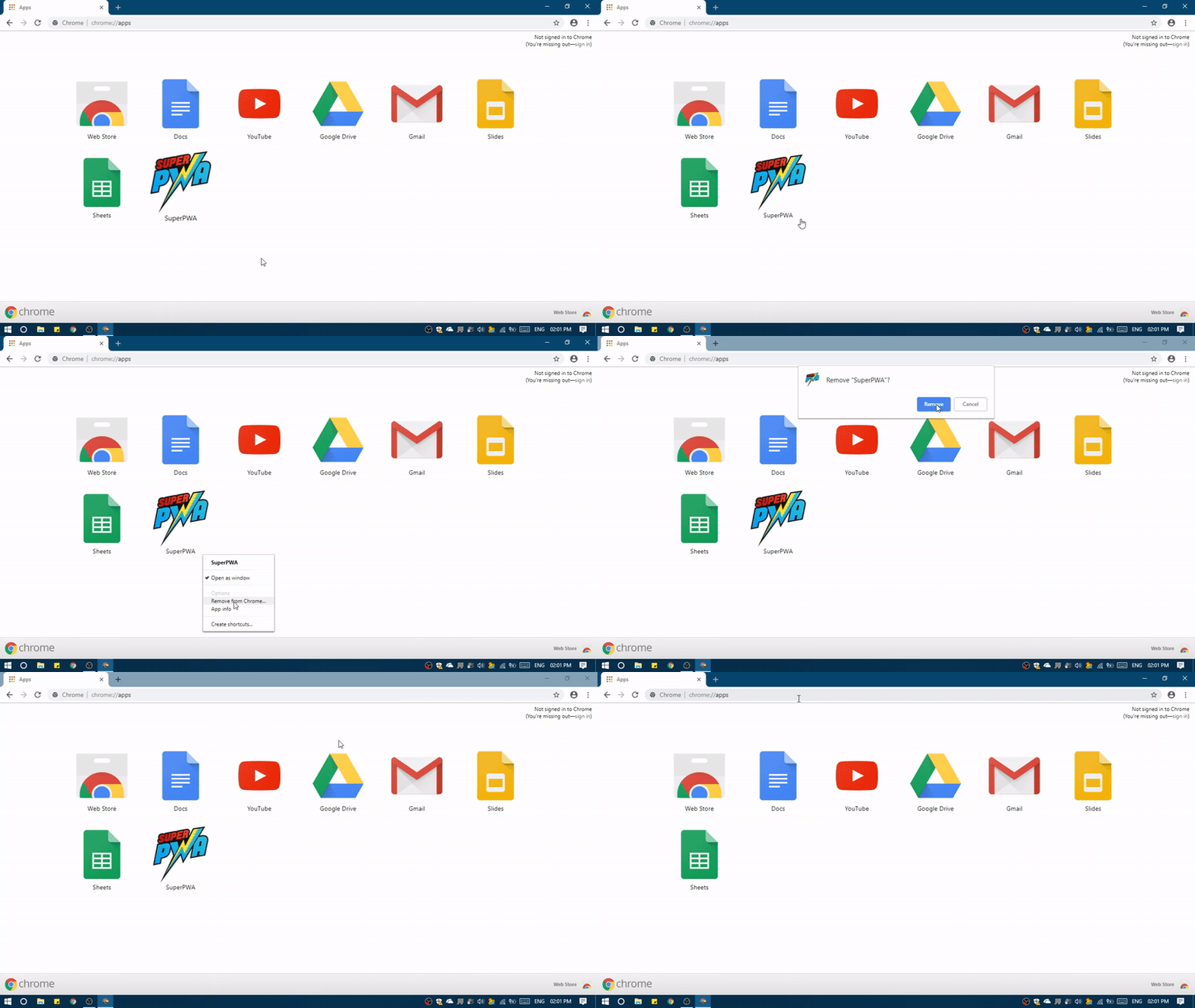
Could you please please please help us with doing this on our site WwhimM
We’ve enabled all flags but on the right, in chrome, the Install + option doesnt show!
Many thanks!!
Hi WwhimM sicals,
Will you please contact our technical team from here- https://superpwa.com/contact/ they will help you as soon as possible.
Awesome!!!
Thanks a lot, Jack 🙂
Hi guys, great plugin thanks alot. Quick one though, im not getting e prompt to install on android chrome or any other device for wp multisite, could you assist.
Hi Bongani Mnyulwa,
Will you please contact our technical team from here- https://superpwa.com/contact/ they will help you as soon as possible.
Yeah how do I reinstall it? After installing and uninstalling I don’t see the install `website` menu item anymore.
Hi chasers,
Will you please contact our technical team from here- https://superpwa.com/contact/ they will help you as soon as possible.
Thank you so much for this awesome plugin.
Great Work!
Thanks a lot, Yves for the kind words
Excellent post, explicit and concise, thanks so much for saving at least a couple of hours of my time.
Two notes:
1. For the installation, Chrome version >= 76 displays (in case of PWAs) an icon in the address bar – before the “bookmark” star icon. This makes even more apparent the fact that the app is “installable” and offers a quicker way to start the installation.
2. As for uninstalling, the first method you mention (Directly from the PWA Window) didn’t removed (at least in my case) the app menu item from the Windows menu. The second method (Via Chrome Apps page) uninstalled the app and correctly removed the application entry from the OS menu.
Thanks again for sharing!
Thanks for pointing this out Serbian.
Buenas quiero colocar el enlace en un botón de mi página web para que al darle clic automáticamente se descargue en el móvil (tal como lo hace desde el hambre que aparece, pero quiero adicional que este en el front de la pagina. Como puedo hacer eso, ya que no consigo la forma
.muchas gracias por su tiempo y excelente plugins
Hi edixon gutierrez,
You can use Our CTA addon to add a shortcode button. For the free version, you can use “custom element to add to home screen” in the Advance section.
Hi there,
is there anyway to make the “Add to Home Screen” a clickable button or make it a hyperlink inside a menu so that the users can click on it?
Also is the “Add to Home Screen” popup customizable? I wanted to make a popup on the home page so that the users can can find it easily.
The current Add to Home Screen prompt disappear very quickly and its hard for non techies to understand on how to add the PWA icon to their desktop.
Regards,
Hi Swallona,
Will you please contact our technical team from here- https://superpwa.com/contact/ they will help you as soon as possible.
Hello, how can I create a link, to put in the main menu or in a pop up, so that the visitor can install PWA from my website? Thank you very much. Wilian Sales
Hi Wilian Sales,
Will you please contact our technical team from here- https://superpwa.com/contact/ they will help you as soon as possible.
“Releasing an update and prompting users to update the app needs a lot of hard work nowadays. Sometimes most of the users won’t update their apps, by using PWA the updates will be handled in the background and users were not needed to be confused.”
Users will be confused anyway, because there are sites like Youtube that will update an app with some horrendous unnecessary big button on their app that 99% of the users don’t need. You’d get questions on how to roll that back. With an actual native app, I just don’t install the “update”. The idea that an update can be done in the background without my permission is exactly the sort of thing that should be avoided. An update should always be done with the user’s permission, regardless of how the “app” (and I use that term loosely here since you include PWAs)
Hi Stijn Hommes,
This update feature is managed by google chrome, whenever you resave the PWA Dashboard (with any changes) or update the PWA plugin, the PWA version update automatically and serves to the user. there is no problem with the app because its just update the ServiceWorker( and cache for update pages other contents will directly deliver from your website )